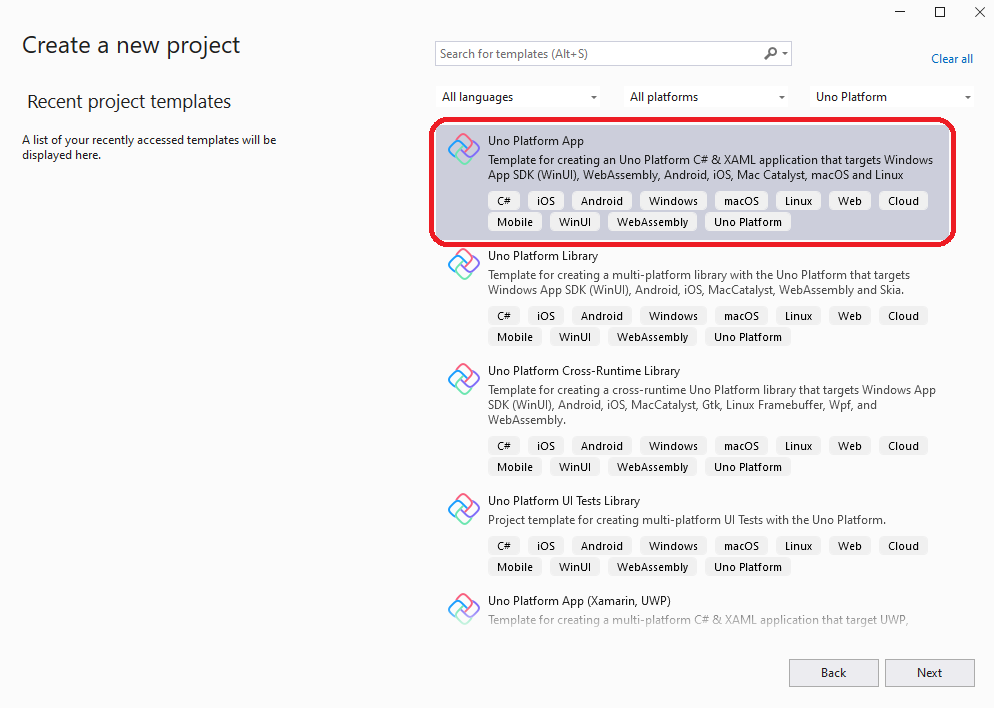
Open Visual Studio and click on "Create a new project". In the "New Project" window, select "Uno Platform App" from the list of templates.
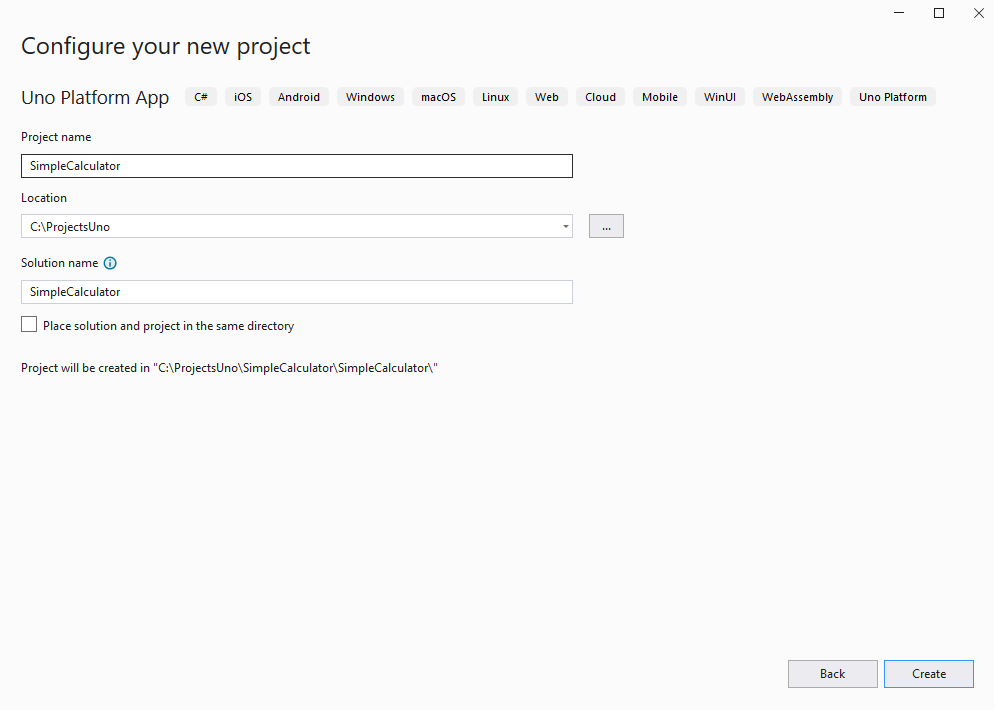
Name your app "SimpleCalculator" and choose the folder where you want to save your project.
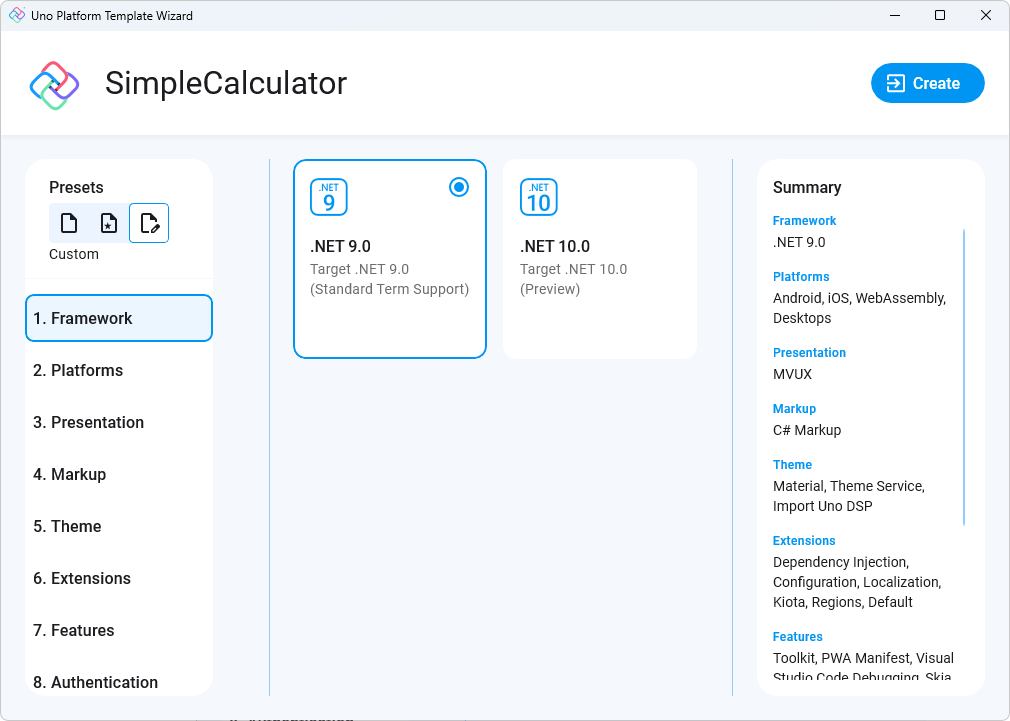
In the first menu option "Framework", let's select .NET 9.0.
Then, select "3. Presentation" and choose the MVVM pattern.
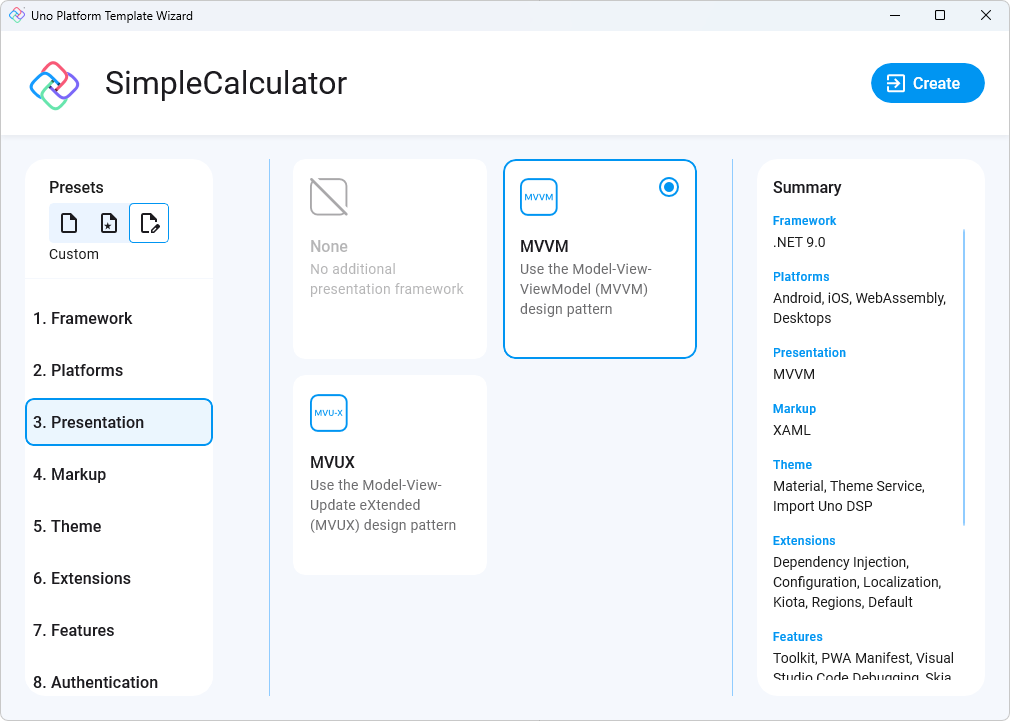
To know more about MVUX follow the MVUX Overview docs.
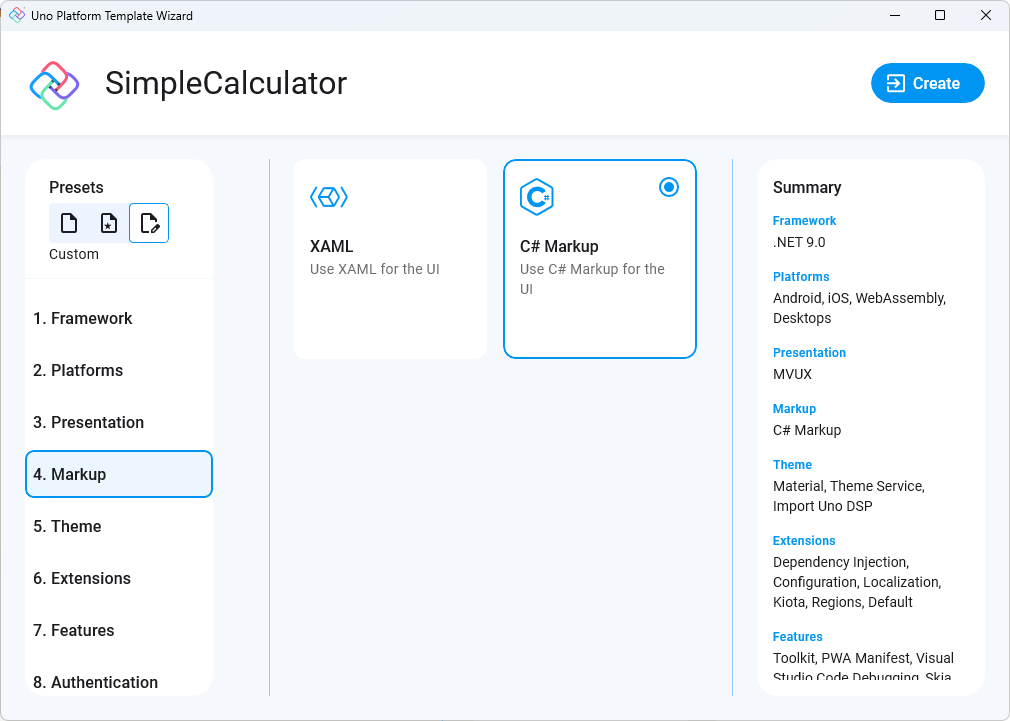
Now, let's move to the "4. Markup" menu option, and let's choose C# Markup for your UI.
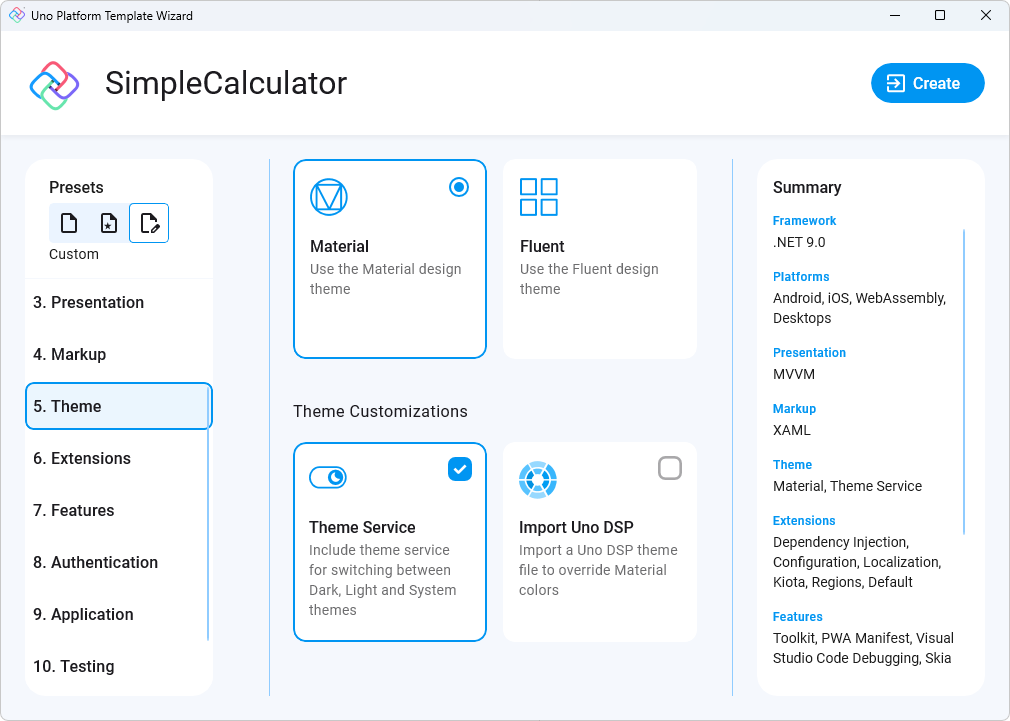
Next, let's select the Material library for our app theme. Click on "5. Theme" from the left menu and select "Material", then under the Theme Customizations section select "Theme Service" to have access to theme switching between Dark and Light feature.
To know more about Themes in Uno follow the Themes Overview docs.
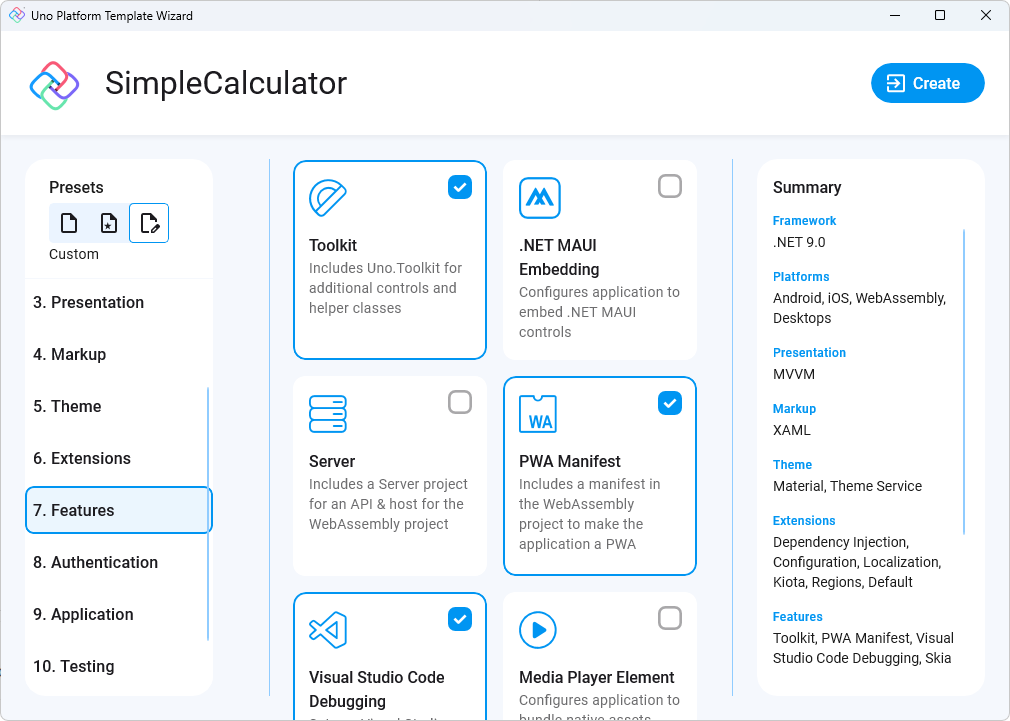
Next, let's move to the "7. Features" menu option, and select the "Toolkit" option for the helper functions to switch themes
To know more about Uno Toolkit follow the Getting Started with Uno Toolkit docs.
Finally, click on the "Create" button to finish.